If your WooCommerce store takes more than 3 seconds to load, you're losing sales. Research consistently shows that every additional second of load time reduces conversions by 7% — and for ecommerce, that translates directly to lost revenue. A store loading in 5 seconds instead of 2 can lose nearly 40% of potential customers before they even see a product.
WooCommerce is the most popular ecommerce platform on the web, powering over 5 million online stores. But its flexibility comes at a cost: without proper optimization, WooCommerce sites can become painfully slow. The good news? Most performance problems have straightforward fixes. After optimizing 50+ WordPress and WooCommerce sites over 15 years, I've distilled the process into these 12 proven fixes that consistently deliver sub-2-second load times.
1. Optimize Your Product Images
Images are the single biggest contributor to slow WooCommerce stores. Product photos uploaded straight from a camera can be 3-8 MB each — multiply that by dozens of products on a category page, and you're asking visitors to download hundreds of megabytes.
What to do: Convert images to WebP format, which is 25-35% smaller than JPEG at equivalent quality. Use a plugin like ShortPixel or Imagify to automatically compress and convert uploads. Set maximum dimensions to 1200px wide for product images — anything larger is wasted bandwidth. Enable responsive images so mobile visitors download smaller files. These changes alone can cut total page weight by 40-60%.
2. Implement Page Caching
Every time someone visits your store without caching, WordPress runs dozens of PHP scripts and database queries to build the page from scratch. Caching stores the finished HTML so subsequent visitors get a pre-built page instantly, typically reducing server response time from 800ms+ to under 100ms.
What to do: Install WP Rocket or LiteSpeed Cache and make sure cart, checkout, and my-account pages are excluded from caching (these are dynamic per-user). Enable browser caching headers so returning visitors don't re-download assets. If your host offers server-level caching (like Varnish or Redis object caching), enable that too for an additional speed layer.
3. Clean Up Your Database
WooCommerce stores accumulate database bloat fast: expired transients, post revisions, spam comments, orphaned metadata, and old WooCommerce sessions. A store running for a year can easily have 50,000+ unnecessary database rows slowing every query.
What to do: Use WP-Optimize or Advanced Database Cleaner to remove expired transients, trashed posts, spam comments, and orphaned metadata. Limit post revisions by adding define('WP_POST_REVISIONS', 5); to wp-config.php. Set up a weekly automated cleanup schedule. For large stores, also clean the wp_wc_sessions table, which can grow to millions of rows.
4. Audit and Remove Unnecessary Plugins
Every plugin adds CSS, JavaScript, and database queries — often on every page, even when not needed. I regularly see WooCommerce stores running 40-60 plugins when they could accomplish the same functionality with 15-20.
What to do: Deactivate each plugin one at a time and test your site speed. Use Query Monitor to see which plugins add the most database queries and load time. Replace heavy multipurpose plugins with lightweight alternatives. Remove plugins you deactivated — even deactivated plugins can slow down your site if they leave behind cron jobs or autoloaded options.
5. Set Up a CDN
A Content Delivery Network stores copies of your images, CSS, and JavaScript on servers worldwide. When a customer in New York visits your store hosted in Los Angeles, they get assets from a nearby CDN server instead of waiting for a cross-country round trip. This can reduce asset load times by 50-70% for geographically distant visitors.
What to do: Cloudflare offers a generous free tier and takes about 15 minutes to set up. BunnyCDN is another excellent option at a very low cost. Configure your CDN to cache static assets (images, CSS, JS, fonts) with long expiration headers. If you're using Cloudflare, enable their Polish feature for automatic image optimization and Rocket Loader for JavaScript.
6. Enable Lazy Loading
On a typical WooCommerce category page showing 20-40 products, lazy loading prevents the browser from downloading all product images at once. Only images visible in the viewport load initially — the rest load as visitors scroll down. This can reduce initial page weight by 60-80%.
What to do: WordPress 5.5+ includes native lazy loading via the loading="lazy" attribute. Make sure your theme supports it. Exclude above-the-fold images (hero banners, first row of products) from lazy loading to avoid hurting LCP scores. Also apply lazy loading to iframes and videos if you have embedded content on product pages.
7. Upgrade Your Hosting
No amount of optimization can fix bad hosting. If your WooCommerce store is on a $5/month shared hosting plan with dozens of other sites on the same server, you're fighting a losing battle. Shared hosting typically delivers 500ms-2s server response times — before any content even begins to load.
What to do: Move to a managed WordPress host like Cloudways, RunCloud with a DigitalOcean VPS, or a WooCommerce-specific host like Starter (formerly Starter.dev). Target a server response time (TTFB) under 200ms. Make sure your host offers PHP 8.2+, HTTP/2, and server-level caching. The extra $20-50/month pays for itself through better conversion rates.
8. Enable GZIP or Brotli Compression
GZIP compression reduces the size of HTML, CSS, and JavaScript files by 60-80% before they're sent to the browser. Brotli is even more efficient, offering 15-20% better compression ratios than GZIP. Yet many WooCommerce stores still serve uncompressed text files.
What to do: Most modern hosts enable GZIP by default — verify with GTmetrix or Google PageSpeed Insights. If not enabled, add GZIP rules to your .htaccess file (Apache) or nginx configuration. If your host supports Brotli, enable it instead for better compression. WP Rocket and LiteSpeed Cache can also configure GZIP for you automatically.
9. Disable WooCommerce Cart Fragments on Non-Cart Pages
This is one of the most overlooked WooCommerce performance killers. By default, WooCommerce loads a script called cart-fragments.min.js on every single page. This script makes an AJAX request on every page load to check if the cart has changed — adding 300-800ms to every page load, even on pages with no cart widget.
What to do: Dequeue cart fragments on pages that don't display a cart icon or count. You can do this with a small code snippet in your theme's functions.php or use a plugin like Disable Cart Fragments. Keep cart fragments active on cart, checkout, and any page with a mini-cart widget. This single fix often delivers the biggest speed improvement per line of code.
10. Optimize the Checkout Page
The checkout page is where your revenue happens, so its performance matters more than any other page. A slow checkout causes cart abandonment — studies show that 17% of shoppers abandon their cart due to a "too long or complicated checkout process," and slow loading compounds that problem.
What to do: Remove unnecessary fields from the checkout form. Disable plugins that aren't needed on the checkout page (use Asset CleanUp or Perfmatters). Enable AJAX-based checkout to avoid full page reloads. Consider WooCommerce's new block-based checkout for better performance. Minimize payment gateway redirects by using inline payment forms (Stripe, PayPal) where possible.
11. Minify and Combine CSS/JavaScript
A typical WooCommerce store loads 15-30 separate CSS and JavaScript files. Each file requires a separate HTTP request, and many contain whitespace, comments, and unused code that waste bandwidth. Minifying removes unnecessary characters while combining reduces the total number of requests.
What to do: Use WP Rocket or Autoptimize to minify and combine CSS and JavaScript files. Be careful with JavaScript combining — test thoroughly, as combining can break WooCommerce's dynamic features. A safer approach is to minify without combining, then defer non-critical JavaScript. Use Critical CSS generation to inline above-the-fold styles and defer the rest.
12. Upgrade to PHP 8.2+
PHP is the engine that runs WordPress and WooCommerce. Each new PHP version brings significant performance improvements — PHP 8.2 is up to 3x faster than PHP 7.4 for WordPress workloads. Yet many stores still run outdated PHP versions because store owners don't know they can (and should) upgrade.
What to do: Check your current PHP version in WordPress under Tools → Site Health. Contact your host to upgrade to PHP 8.2 or 8.3 — most hosts make this a one-click change. Test your site on a staging environment first to ensure plugin compatibility. If any plugins don't support PHP 8.2+, replace them with maintained alternatives. This is a free performance upgrade that takes minutes.
Putting It All Together
You don't need to implement all 12 fixes at once. Start with the highest-impact changes: image optimization, caching, and disabling cart fragments. These three alone can cut your load time in half. Then work through hosting, CDN, and database cleanup for additional gains.
Measure your progress with Google PageSpeed Insights and GTmetrix before and after each change. Target these benchmarks: LCP under 2.5 seconds, INP under 200ms, CLS under 0.1, and total page load under 3 seconds. With all 12 optimizations in place, sub-2-second load times are consistently achievable.
If you'd rather not tackle this yourself, I offer a comprehensive WordPress speed optimization service that covers all of these fixes and more. I also specialize in WooCommerce development — building fast, scalable stores from the ground up so you never have to deal with performance issues in the first place.
Recent portfolio work
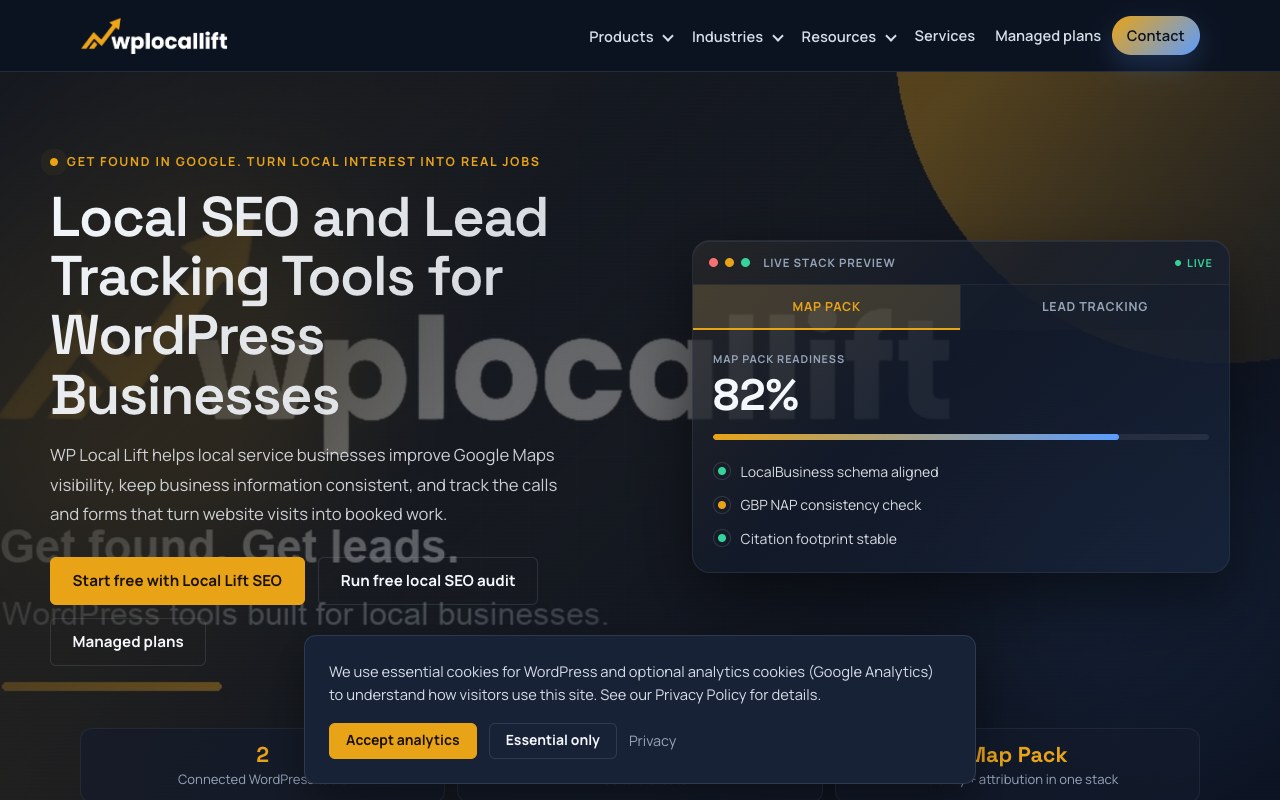
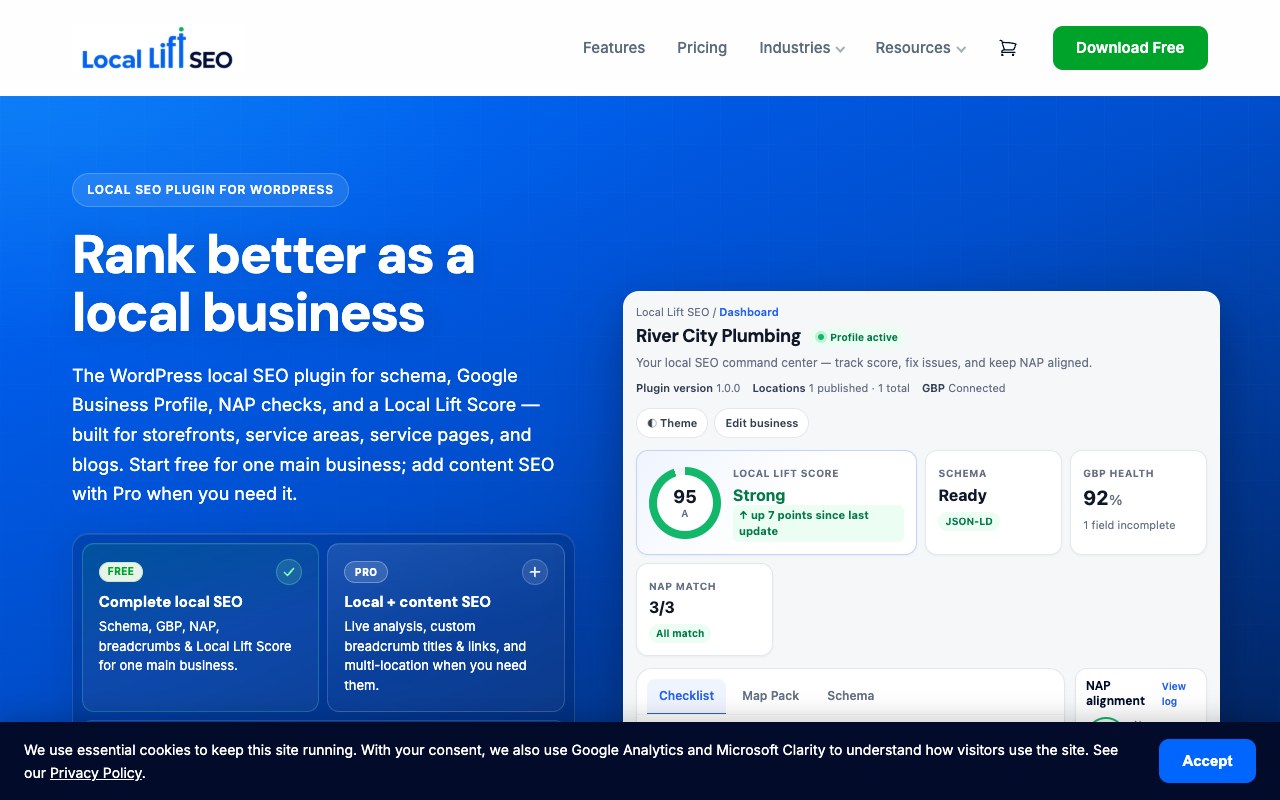
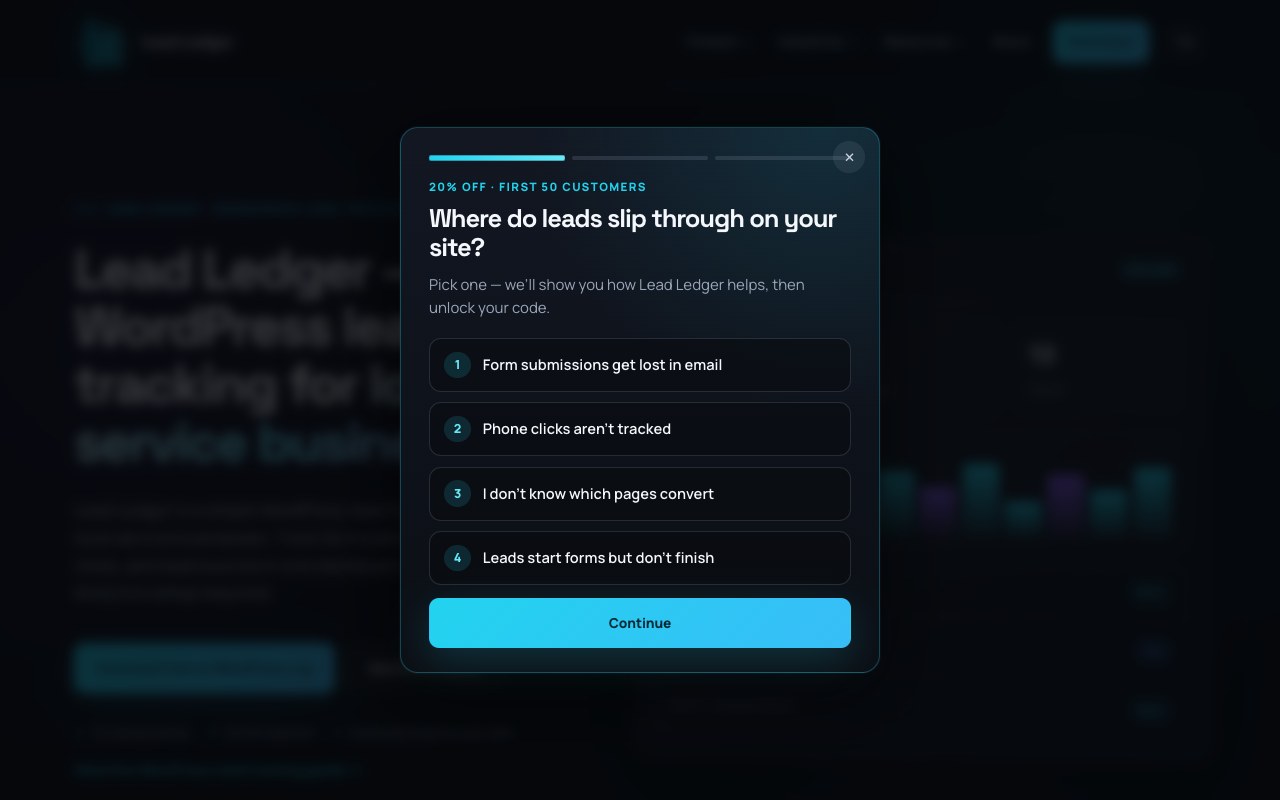
Three recent WordPress product sites built for WP Local Lift. Browse the full portfolio for more client builds.